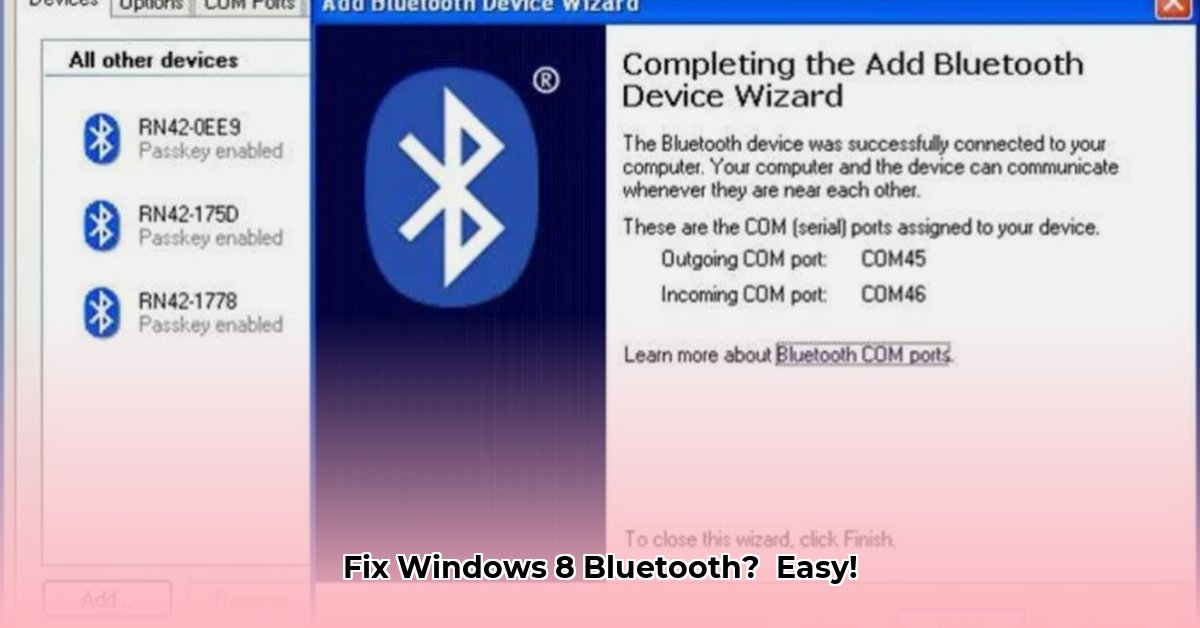
Getting your Windows 8 PC to connect with Bluetooth devices shouldn't be a headache. This guide provides a step-by-step process to download and install the necessary drivers, troubleshoot common issues, and verify a successful connection. Even if your computer doesn't have built-in Bluetooth, we'll guide you through adding it.
Is Your Windows 8 PC Bluetooth-Ready?
Before downloading drivers, confirm your computer supports Bluetooth. Most laptops have it built-in, but desktop PCs often require a separate USB Bluetooth adapter.
To check:
- Open the Device Manager (search for it in the Windows 8 search bar).
- Examine the device list. If you see "Bluetooth," you're good to go! If not, you'll need a USB Bluetooth adapter.
Finding the Right Bluetooth Driver
The correct driver is essential for your computer to communicate with Bluetooth devices. The best source is your computer manufacturer's (e.g., Dell, HP, Lenovo) website.
- Go to their support section.
- Enter your model number (found on a sticker on your PC).
- Search for "Bluetooth drivers" or "Bluetooth software" for Windows 8.
- Download the correct version for your operating system. Only download from official sources to prevent malware. If your manufacturer’s website doesn't have the required driver, attempt to locate the driver on Microsoft's support website.
Installing the Bluetooth Driver
Installing the driver is generally straightforward:
- Double-click the downloaded file to start the installation.
- Follow the on-screen instructions (usually just clicking "Next").
- If prompted, provide administrator privileges.
- Restart your computer if requested to complete the installation.
Troubleshooting Common Issues
Even with correct installation, problems can arise:
Driver Installation Errors: If you encounter an error, try running the installer as administrator (right-click, "Run as administrator"). If that fails, uninstall existing Bluetooth drivers (Device Manager, right-click the adapter, "Uninstall device"), restart, and reinstall the new driver.
Bluetooth Device Not Found: Check that the adapter is correctly plugged in and powered on (if applicable). Review the Device Manager to ensure the driver is installed and the Bluetooth device is listed.
Connection Problems: Ensure both devices (your PC and the Bluetooth device) are in "discoverable" mode. Restarting both often resolves temporary issues. Physical obstructions can also affect connectivity; try moving closer.
Post-Installation Verification
Confirm successful installation:
- Go to the Windows 8 Start Menu, search for "Bluetooth," and select "Bluetooth settings."
- Verify that Bluetooth is active and can see nearby Bluetooth devices.
- Attempt to connect a Bluetooth device (headphones, phone, etc.). Successful connection confirms proper installation.
Additional Resources
For further assistance:
- Microsoft support website: https://www.microsoft.com/en-us/windows/windows-8-drivers (Microsoft's Windows 8 driver support page)
- Your computer manufacturer's support site.
- Online forums dedicated to Windows 8 troubleshooting.
This guide provides a comprehensive approach to getting Bluetooth working on your Windows 8 PC. Remember that persistent problems might require more specialized troubleshooting or professional assistance.
⭐⭐⭐⭐☆ (4.8)
Download via Link 1
Download via Link 2
Last updated: Sunday, April 27, 2025